
English · Python
Appearance
With Playwright you can test your app on any browser as well as emulate a real device such as a mobile phone or tablet. Simply configure the devices you would like to emulate and Playwright will simulate the browser behavior such as "userAgent", "screenSize", "viewport" and if it "hasTouch" enabled. You can also emulate the "geolocation", "locale" and "timezone" for all tests or for a specific test as well as set the "permissions" to show notifications or change the "colorScheme".
Playwright comes with a registry of device parameters using playwright.devices for selected desktop, tablet and mobile devices. It can be used to simulate browser behavior for a specific device such as user agent, screen size, viewport and if it has touch enabled. All tests will run with the specified device parameters.
import asyncio
from playwright.async_api import async_playwright, Playwright

async def run(playwright: Playwright):
    iphone_13 = playwright.devices['iPhone 13']
    browser = await playwright.webkit.launch(headless=False)
    context = await browser.new_context(
        **iphone_13,
    )

async def main():
    async with async_playwright() as playwright:
        await run(playwright)
asyncio.run(main())from playwright.sync_api import sync_playwright, Playwright
def run(playwright: Playwright):
iphone_13 = playwright.devices['iPhone 13']
browser = playwright.webkit.launch(headless=False)
context = browser.new_context(
**iphone_13,
)
with sync_playwright() as playwright:
run(playwright)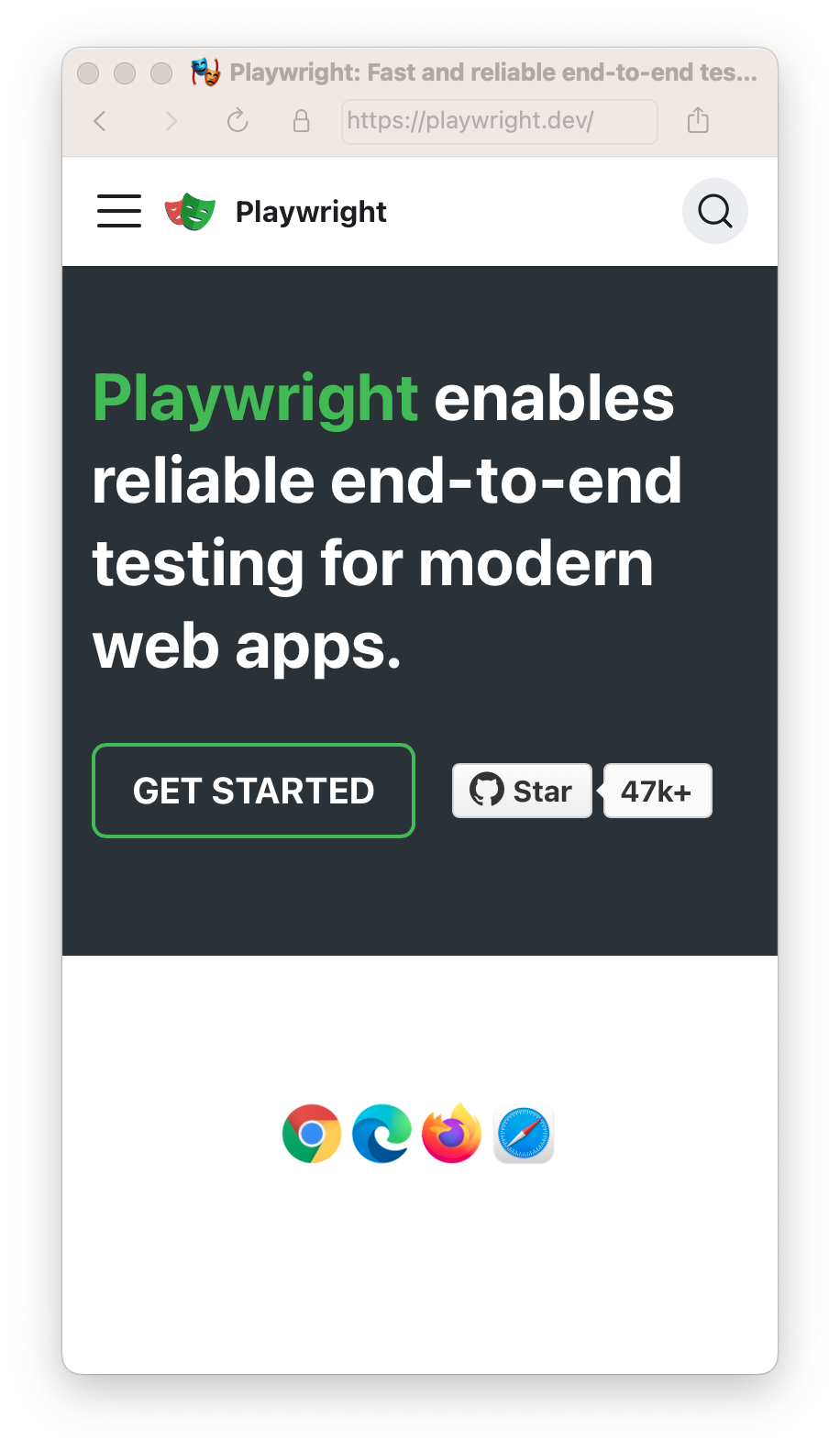
Note: Pre-configured devices assume a specific platform. For example, "Desktop Chrome" will provide a Windows-specific user agent string.
If you would like to use the user agent specific to the platform that is running the tests, we recommend unsetting the user agent property.
desktop_chrome = playwright.devices["Desktop Chrome"]
context = browser.new_context(**desktop_chrome, user_agent=None)The viewport is included in the device but you can override it for some tests with page.set_viewport_size().
Test file:
The same works inside a test file.
# Create context with given viewport
context = await browser.new_context(
  viewport={ 'width': 1280, 'height': 1024 }
)

# Resize viewport for individual page
await page.set_viewport_size({"width": 1600, "height": 1200})

# Emulate high-DPI
context = await browser.new_context(
  viewport={ 'width': 2560, 'height': 1440 },
  device_scale_factor=2,
)# Create context with given viewport
context = browser.new_context(
viewport={ 'width': 1280, 'height': 1024 }
)
# Resize viewport for individual page
page.set_viewport_size({"width": 1600, "height": 1200})
# Emulate high-DPI
context = browser.new_context(
viewport={ 'width': 2560, 'height': 1440 },
device_scale_factor=2,
)Whether the meta viewport tag is taken into account and touch events are enabled.
context = await browser.new_context(
  is_mobile=False
)context = browser.new_context(
is_mobile=False
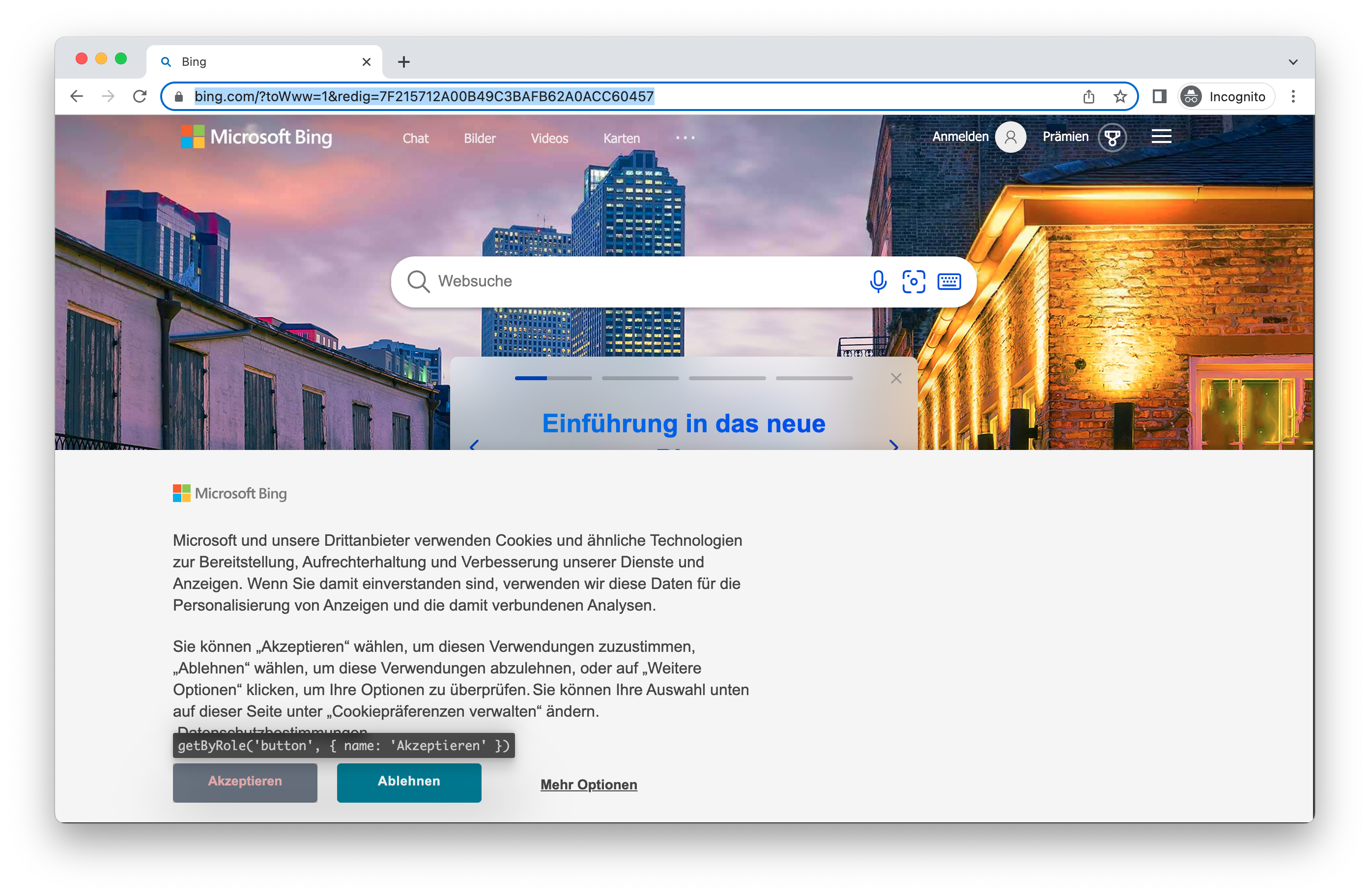
)Emulate the browser Locale and Timezone which can be set globally for all tests in the config and then overridden for particular tests.
context = await browser.new_context(
  locale='de-DE',
  timezone_id='Europe/Berlin',
)context = browser.new_context(
locale='de-DE',
timezone_id='Europe/Berlin',
)
Allow app to show system notifications.
context = await browser.new_context(
  permissions=['notifications'],
)context = browser.new_context(
permissions=['notifications'],
)Allow notifications for a specific domain.
await context.grant_permissions(['notifications'], origin='https://skype.com')context.grant_permissions(['notifications'], origin='https://skype.com')Revoke all permissions with browser_context.clear_permissions().
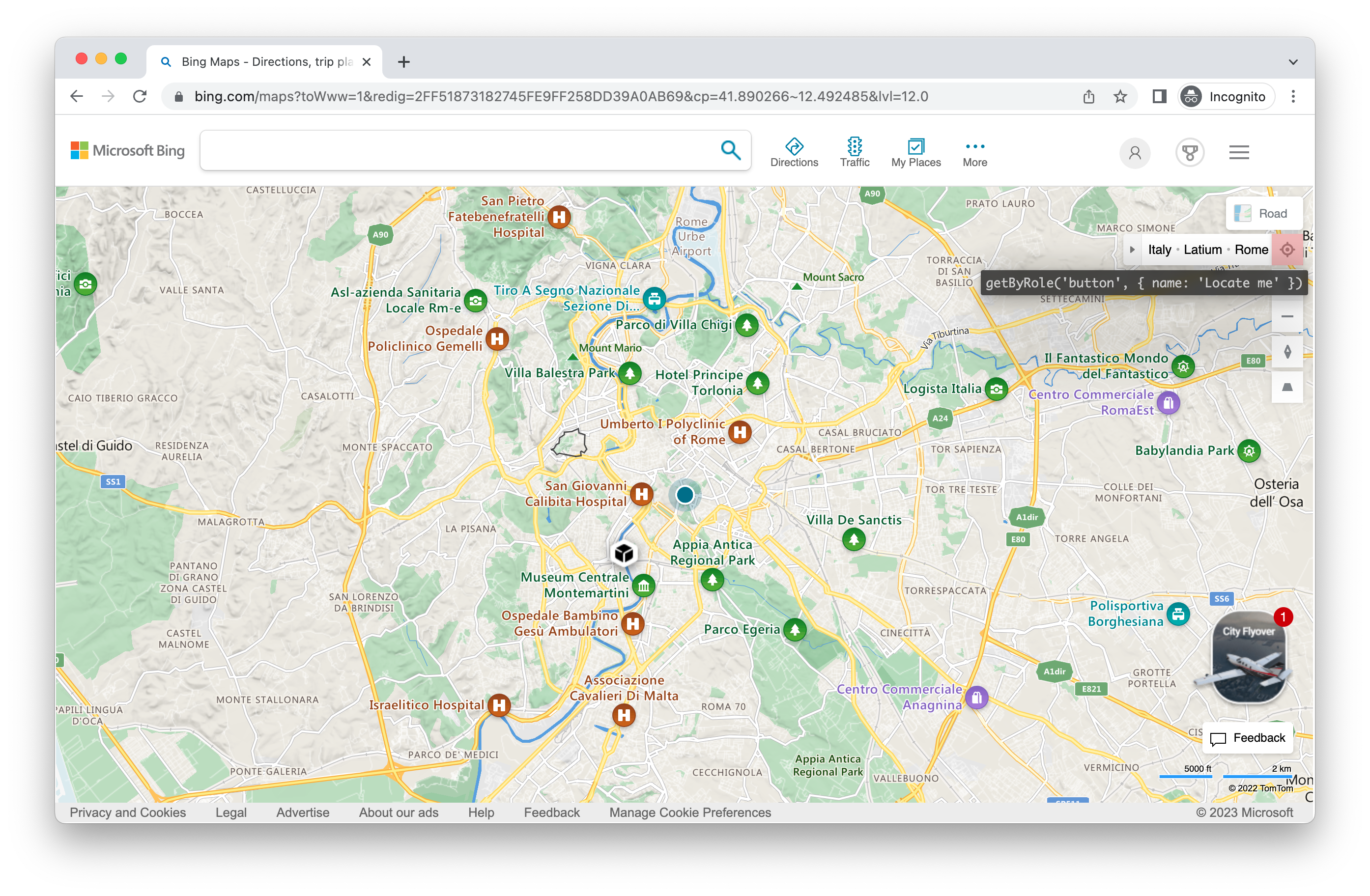
await context.clear_permissions()context.clear_permissions()Grant "geolocation" permissions and set geolocation to a specific area.
context = await browser.new_context(
  geolocation={"longitude": 41.890221, "latitude": 12.492348},
  permissions=["geolocation"]
)context = browser.new_context(
geolocation={"longitude": 41.890221, "latitude": 12.492348},
permissions=["geolocation"]
)
Change the location later:
await context.set_geolocation({"longitude": 48.858455, "latitude": 2.294474})context.set_geolocation({"longitude": 48.858455, "latitude": 2.294474})Note you can only change geolocation for all pages in the context.
Emulate the users "colorScheme". Supported values are 'light', 'dark', and 'no-preference'. You can also emulate the media type with page.emulate_media().
# Create context with dark mode
context = await browser.new_context(
  color_scheme='dark' # or 'light'
)

# Create page with dark mode
page = await browser.new_page(
  color_scheme='dark' # or 'light'
)

# Change color scheme for the page
await page.emulate_media(color_scheme='dark')

# Change media for page
await page.emulate_media(media='print')# Create context with dark mode
context = browser.new_context(
color_scheme='dark' # or 'light'
)
# Create page with dark mode
page = browser.new_page(
color_scheme='dark' # or 'light'
)
# Change color scheme for the page
page.emulate_media(color_scheme='dark')
# Change media for page
page.emulate_media(media='print')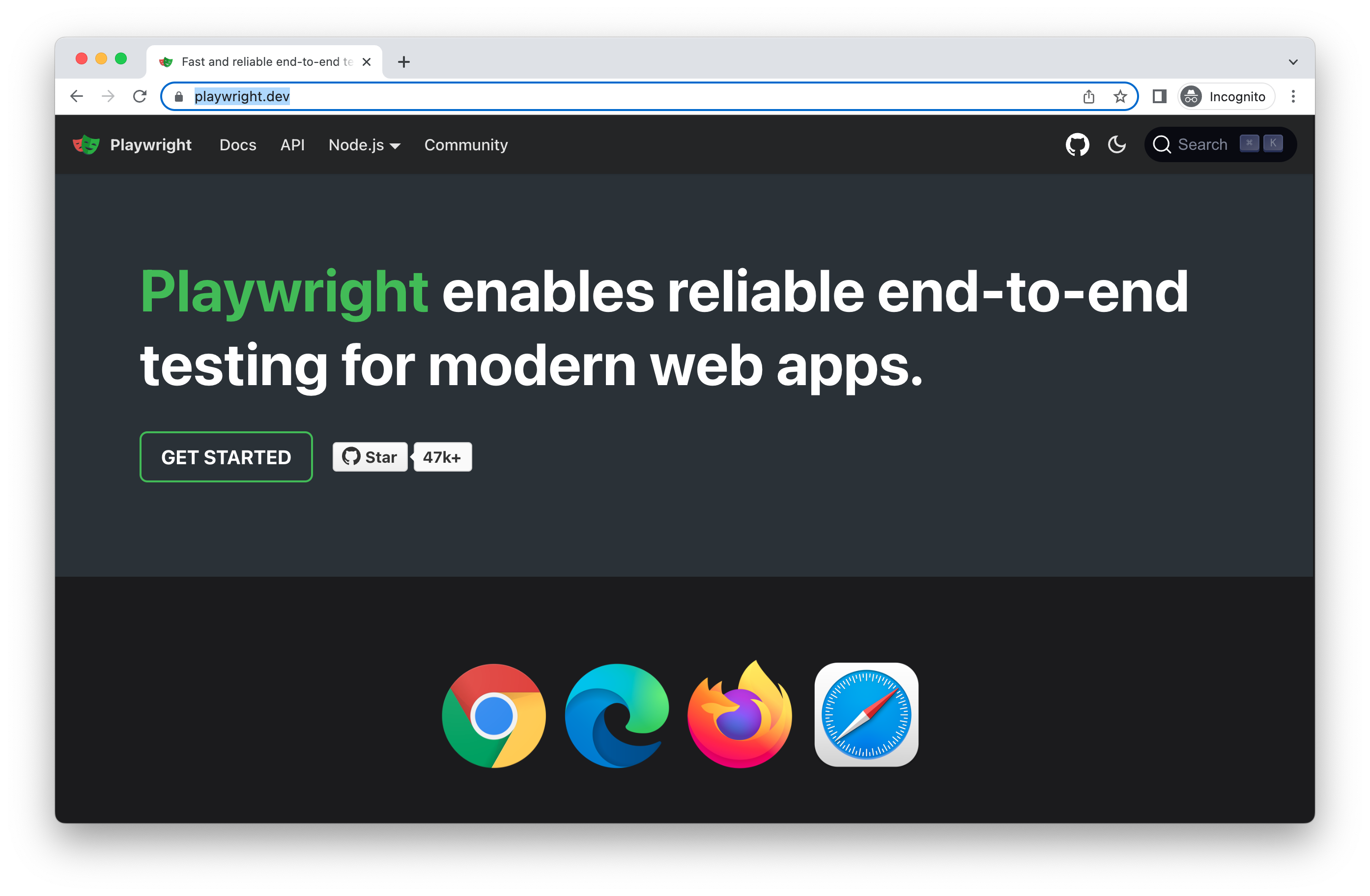
The "reducedMotion", "forcedColors" and "contrast" options emulate the prefers-reduced-motion, forced-colors and prefers-contrast media features the same way. Supported values are 'reduce' and 'no-preference' for reduced motion, 'active' and 'none' for forced colors, and 'more' and 'no-preference' for contrast. page.emulate_media() changes them for a single page.
# Create context with reduced motion, forced colors and more contrast
context = await browser.new_context(
  reduced_motion='reduce', # or 'no-preference'
  forced_colors='active', # or 'none'
  contrast='more' # or 'no-preference'
)

# Change the media features for the page
await page.emulate_media(reduced_motion='reduce', forced_colors='active', contrast='more')# Create context with reduced motion, forced colors and more contrast
context = browser.new_context(
reduced_motion='reduce', # or 'no-preference'
forced_colors='active', # or 'none'
contrast='more' # or 'no-preference'
)
# Change the media features for the page
page.emulate_media(reduced_motion='reduce', forced_colors='active', contrast='more')The User Agent is included in the device and therefore you will rarely need to change it however if you do need to test a different user agent you can override it with the userAgent property.
context = await browser.new_context(
  user_agent='My user agent'
)context = browser.new_context(
user_agent='My user agent'
)Emulate the network being offline.
context = await browser.new_context(
  offline=True
)context = browser.new_context(
offline=True
)INFO
Offline emulation affects HTTP requests, such as page navigations, fetch() and XMLHttpRequest.
WebSocket behavior depends on the browser and whether the connection is already established. Chromium and Firefox fail new WebSocket connections while offline, but do not close already-open connections. Chromium can defer incoming messages until the context goes back online, rather than lose them; Firefox can continue delivering messages while offline. WebKit can allow both new WebSocket connections and traffic on established connections while offline. Do not rely on offline emulation to test WebSocket message loss or connection closure.
Offline emulation does not affect WebRTC traffic: established RTCPeerConnections keep sending and receiving media over UDP. To test WebRTC connection loss, interrupt the connection outside the browser, for example by stopping the TURN server or using an OS-level firewall.
Emulate a user scenario where JavaScript is disabled.
context = await browser.new_context(
  java_script_enabled=False
)context = browser.new_context(
java_script_enabled=False
)