
English · Node.js
Appearance
import LiteYouTube from '@site/src/components/LiteYouTube';
The Playwright VS Code extension brings the power of Playwright Test directly into your editor, allowing you to run, debug, and generate tests with a seamless UI-driven experience. This guide will walk you through setting up the extension and using its core features to supercharge your end-to-end testing workflow.
Before you begin, make sure you have the following installed:
Ctrl+Shift+X or Cmd+Shift+X) and search for "Playwright". Install the official extension from Microsoft.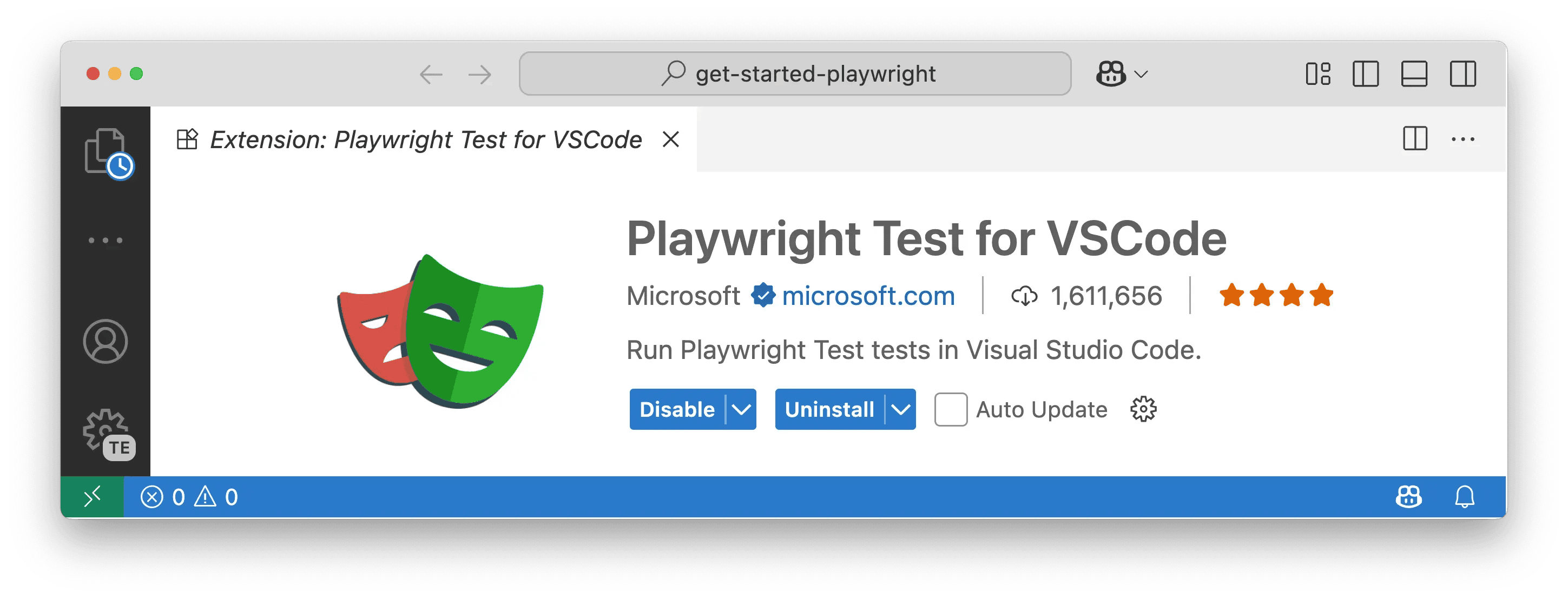
Ctrl+Shift+P or Cmd+Shift+P) and run the Test: Install Playwright command.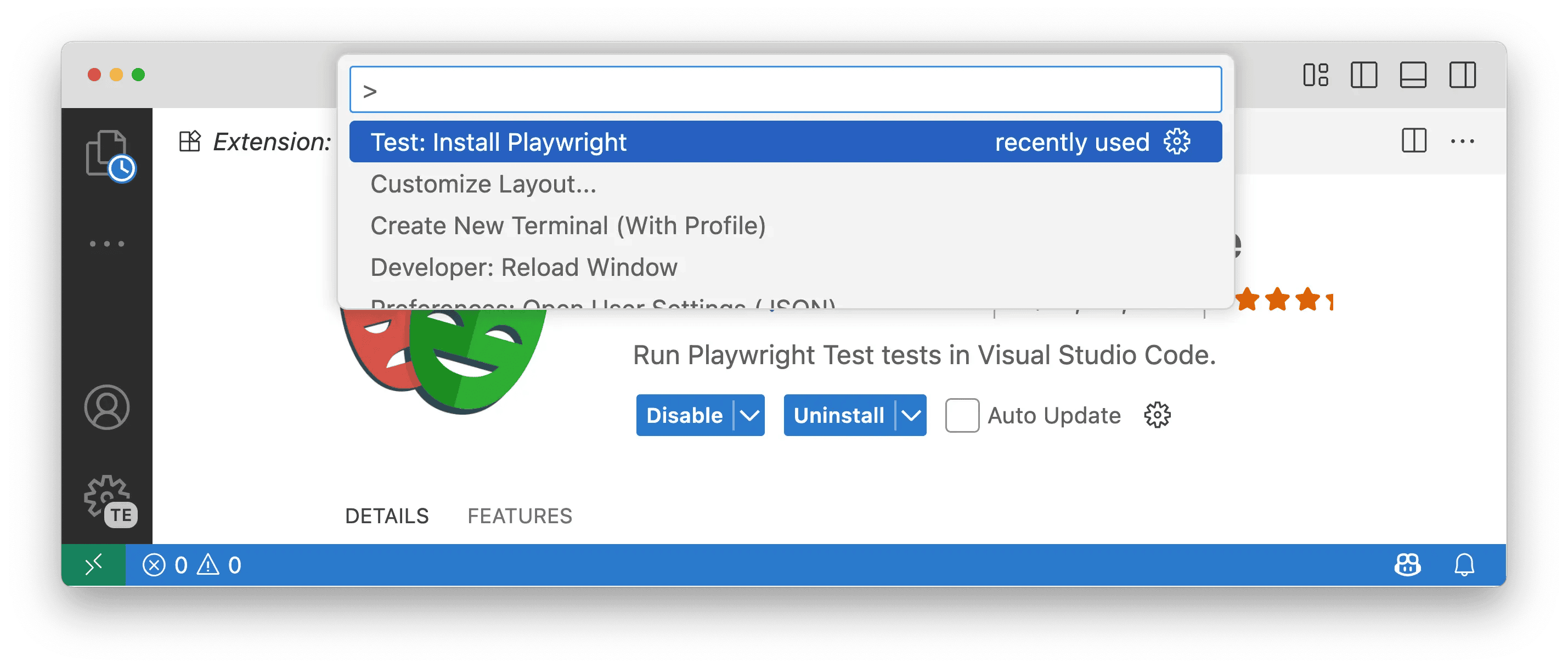
playwright.config.ts file.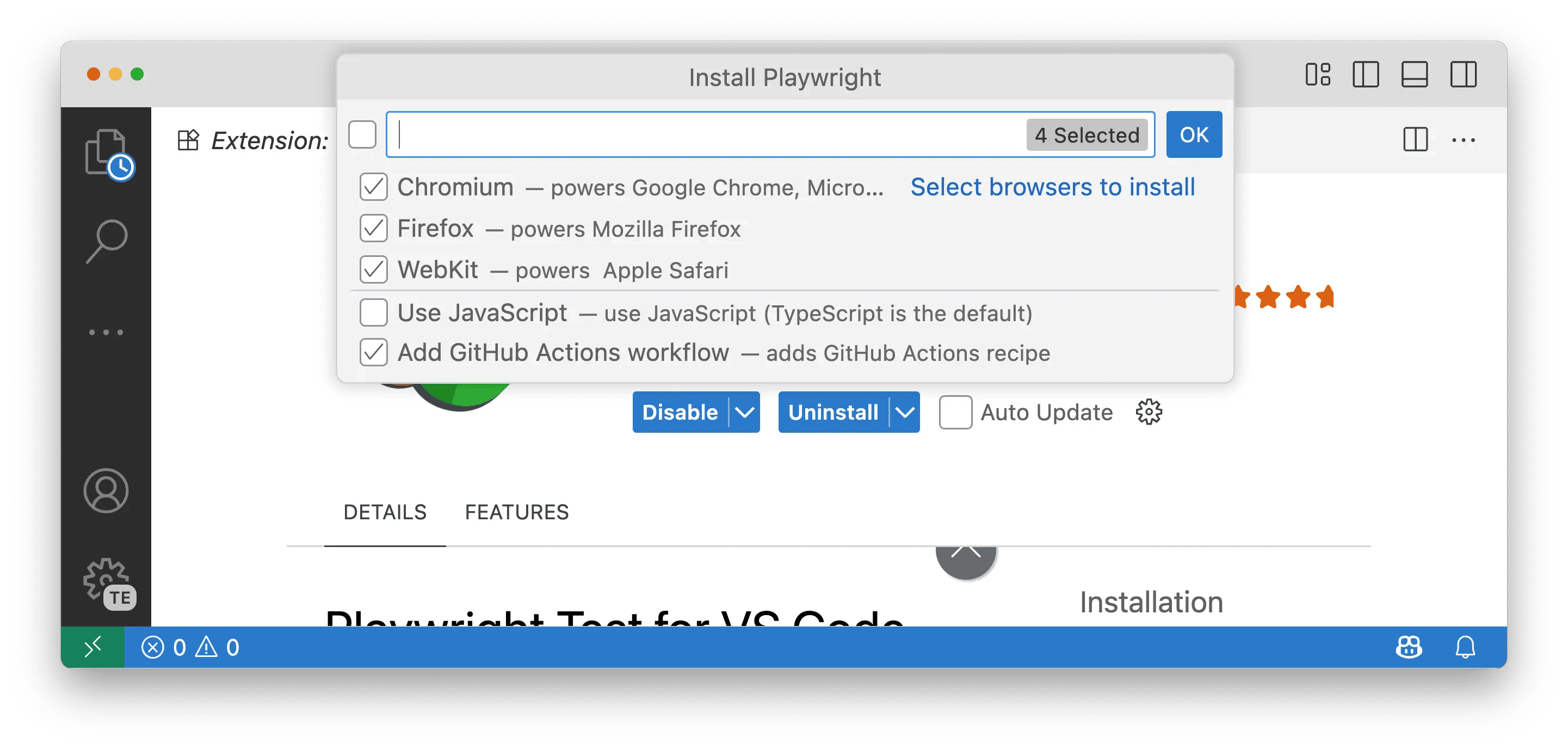
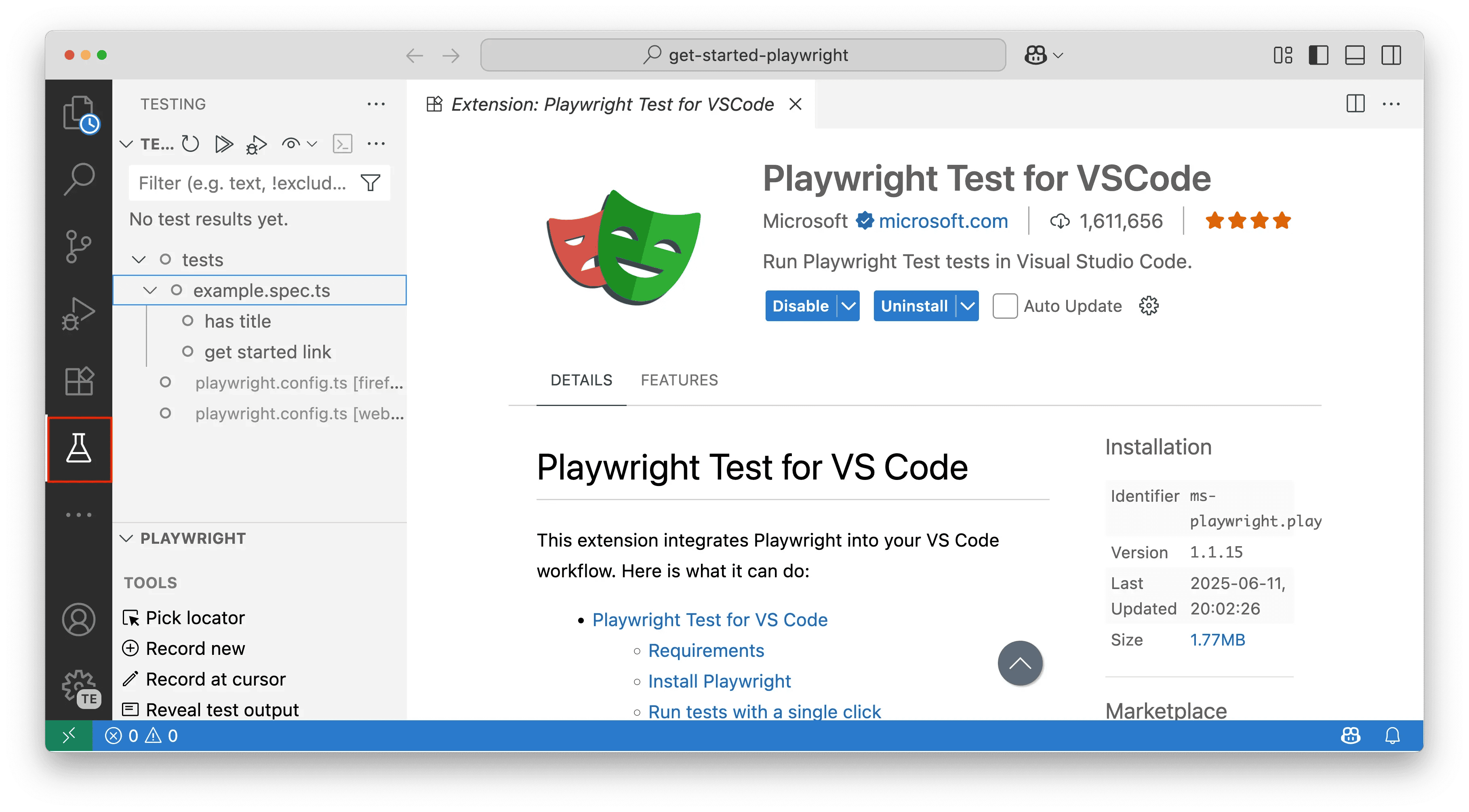
Click the Testing icon in the VS Code Activity Bar to open the Test Explorer. Here, you'll find your tests, as well as the Playwright sidebar for managing projects, tools, and settings.
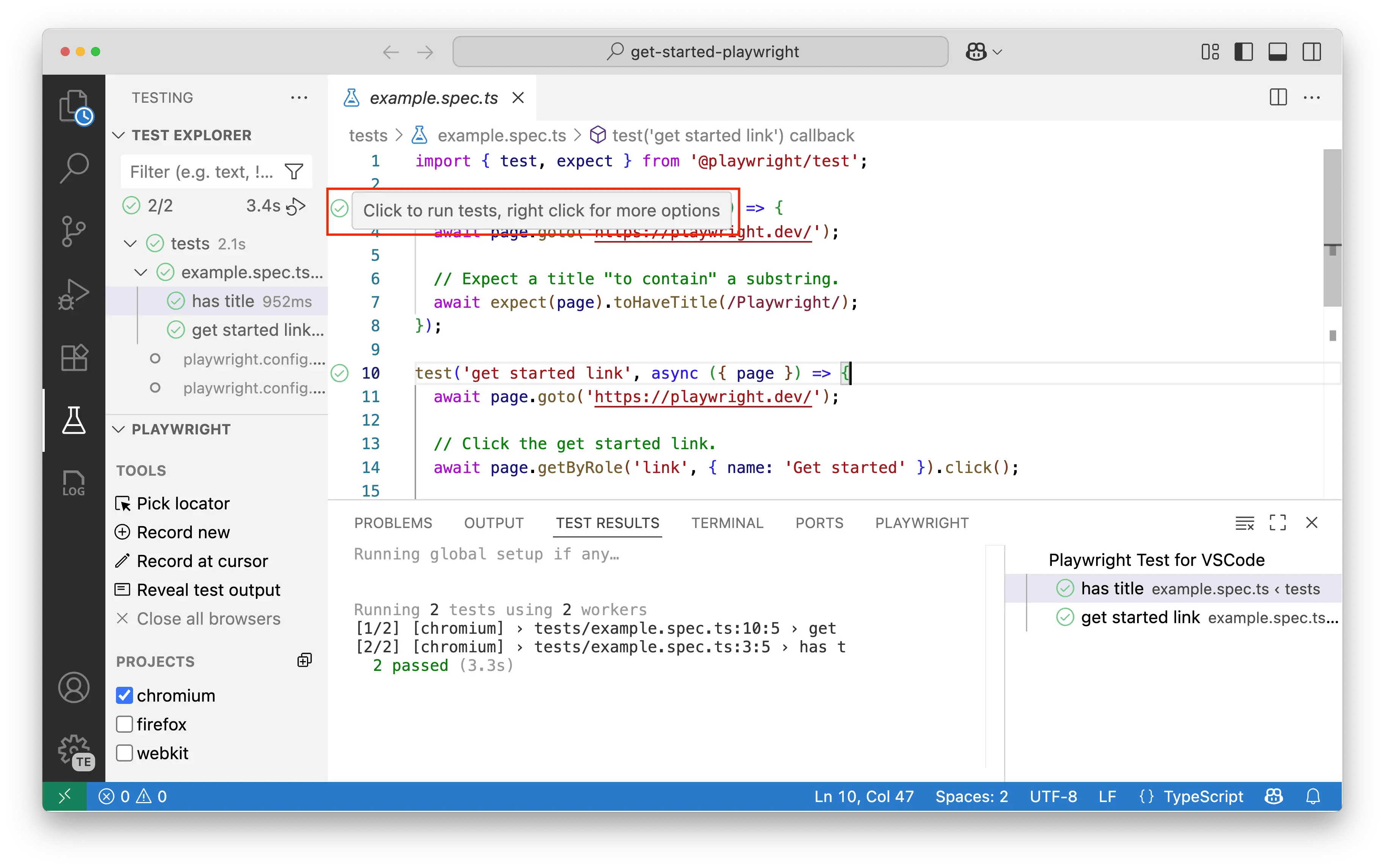
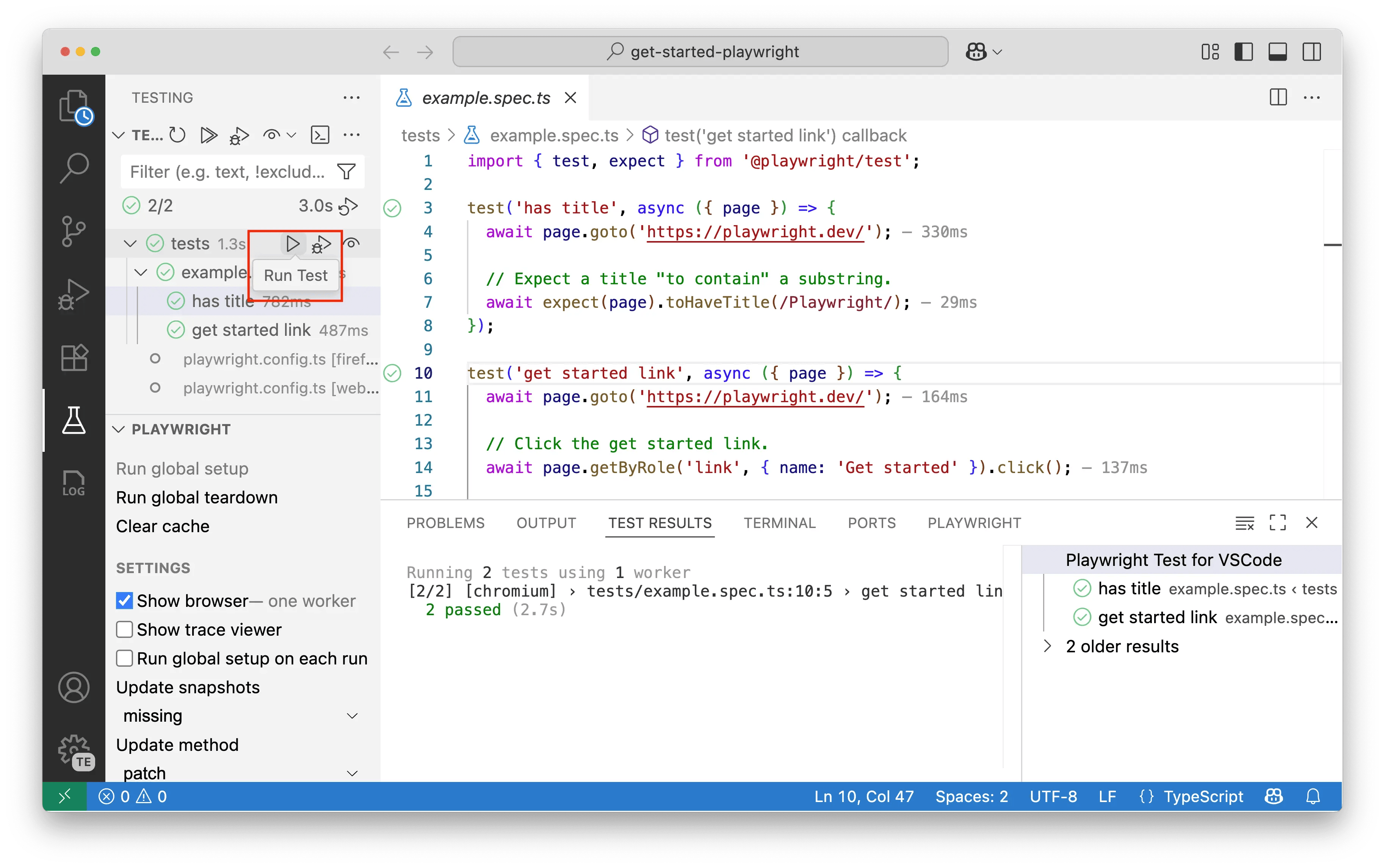
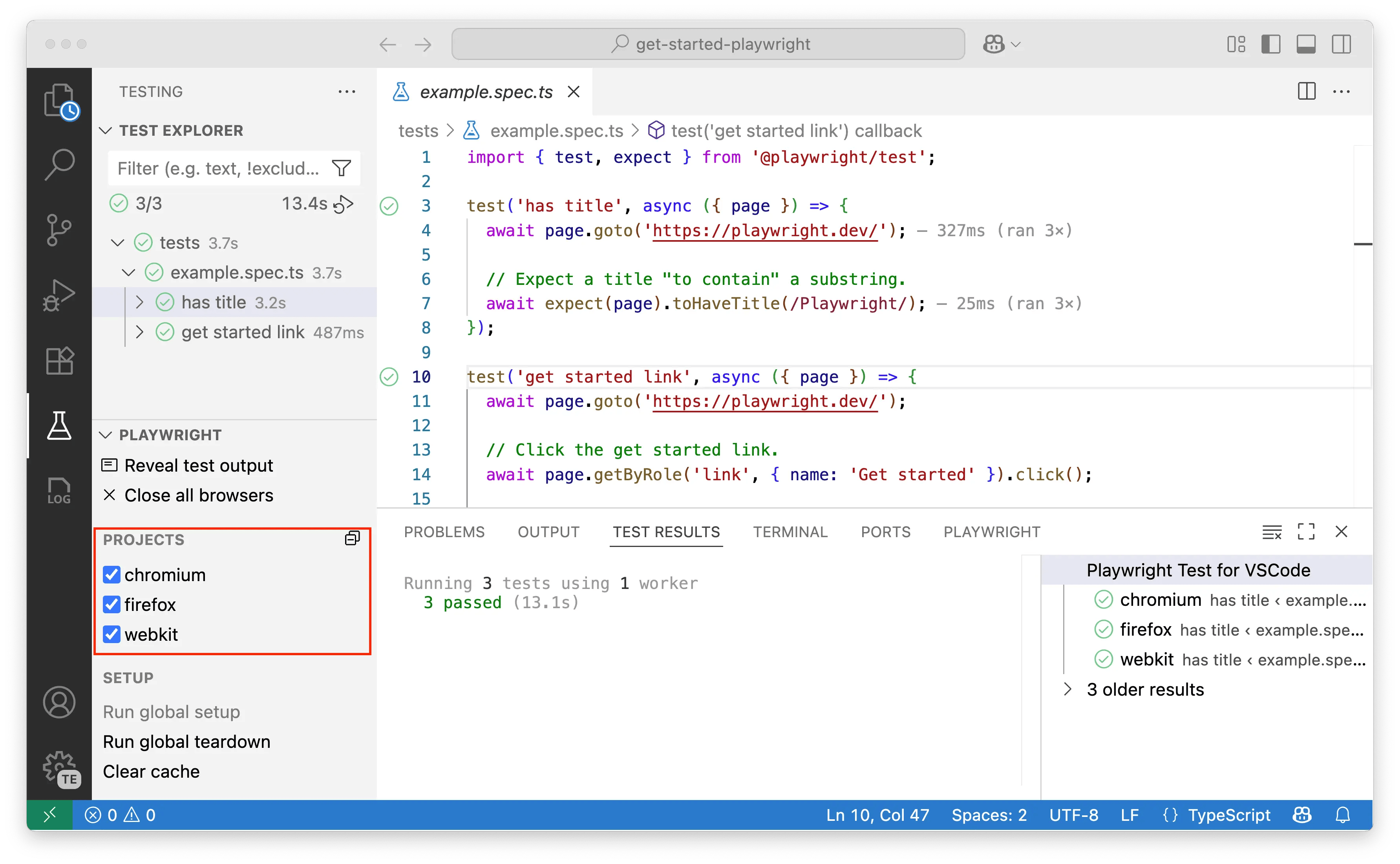
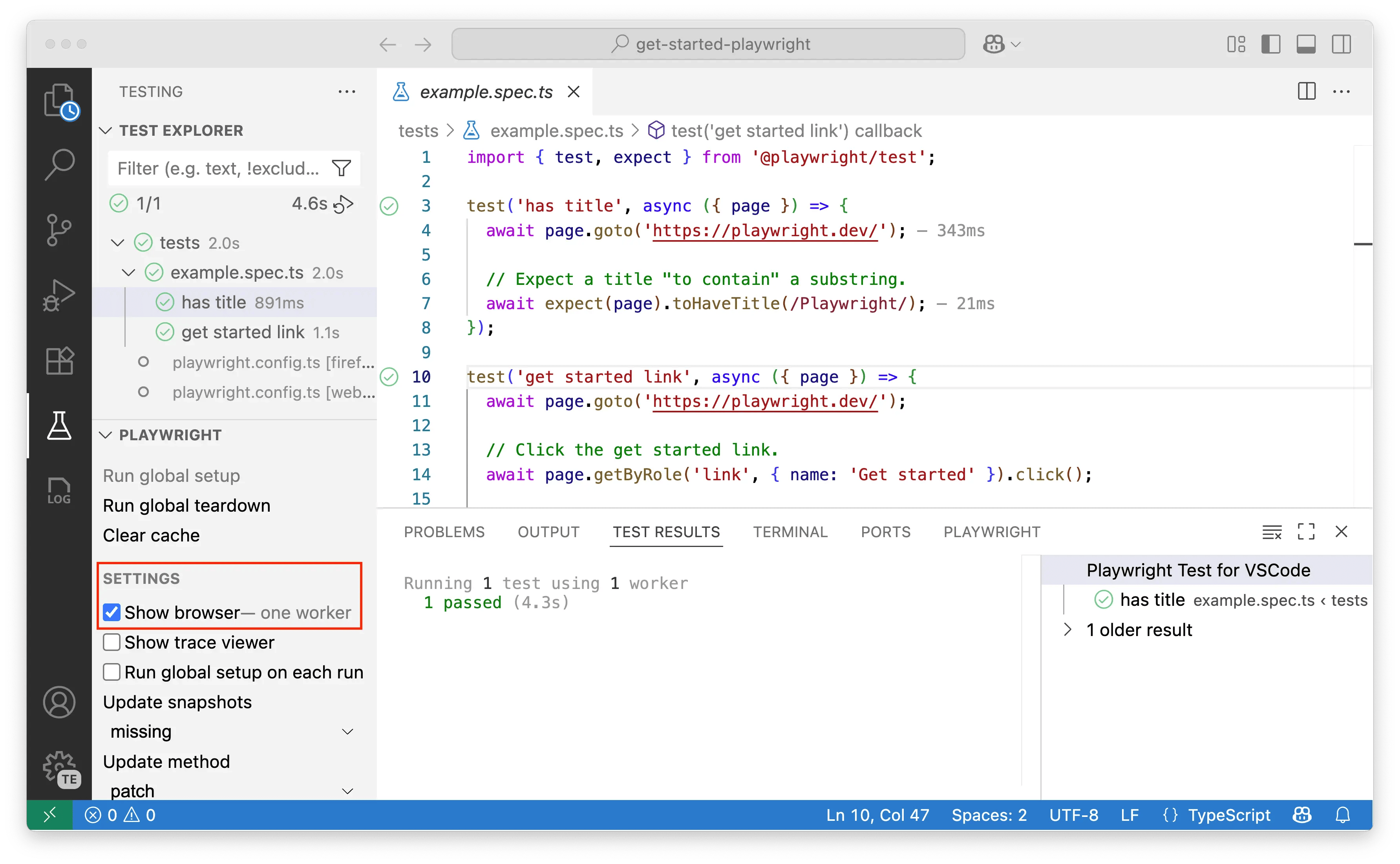
The VS Code extension provides powerful debugging tools to help you identify and fix issues in your tests. You can set breakpoints, inspect variables, view detailed error messages, get AI-powered suggestions to resolve test failures, and use the comprehensive trace viewer to analyze test execution step-by-step.
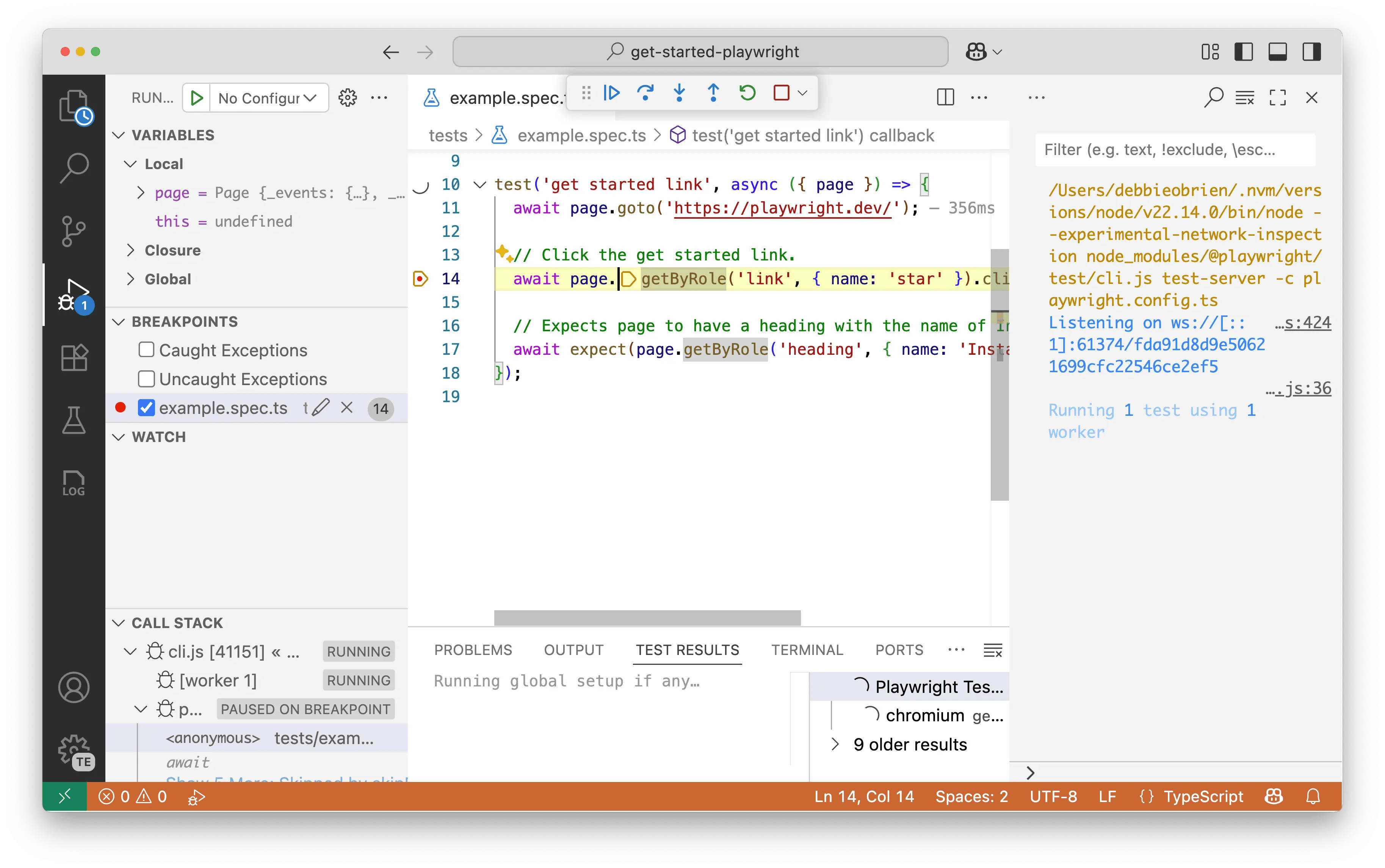
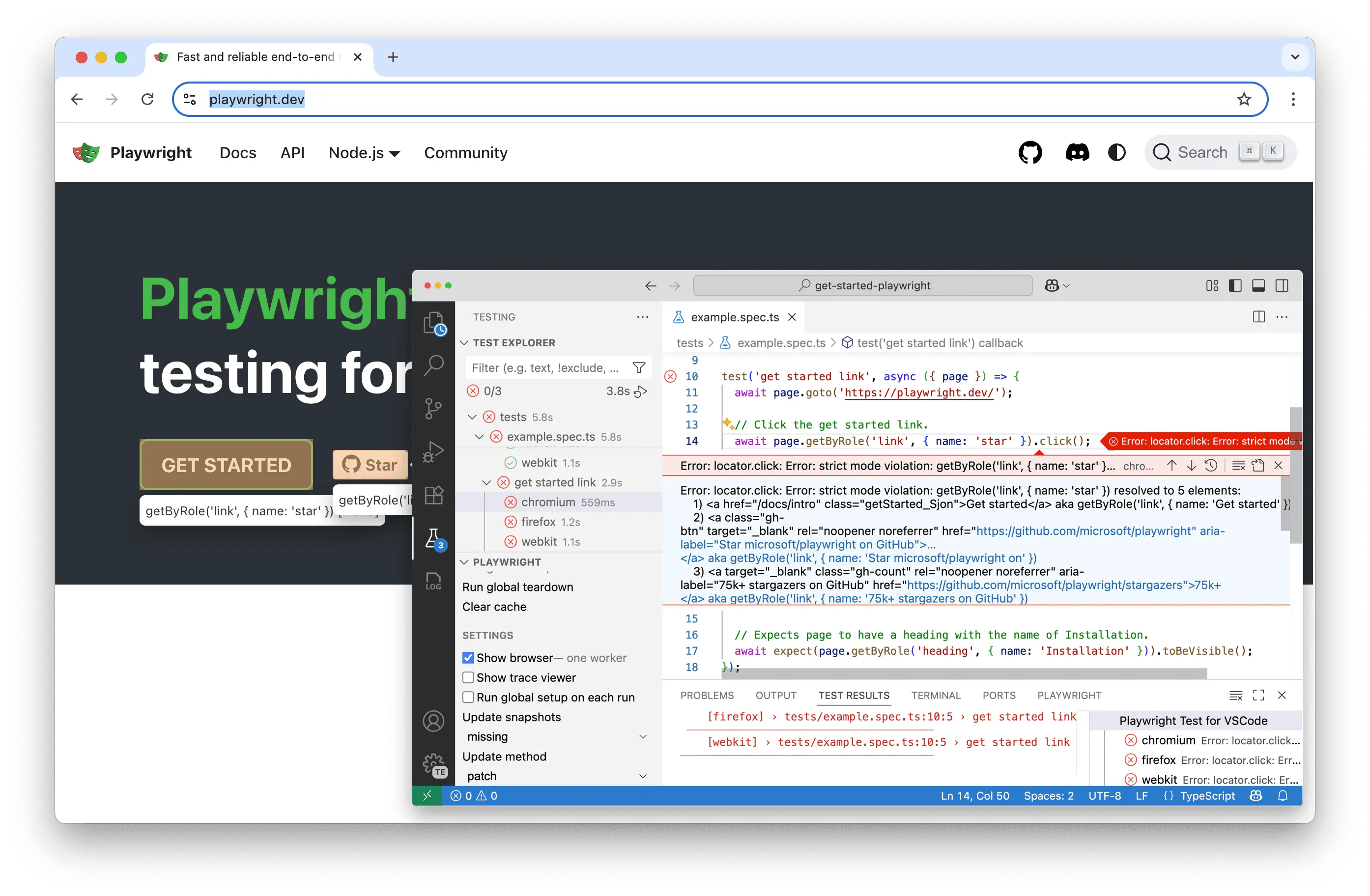
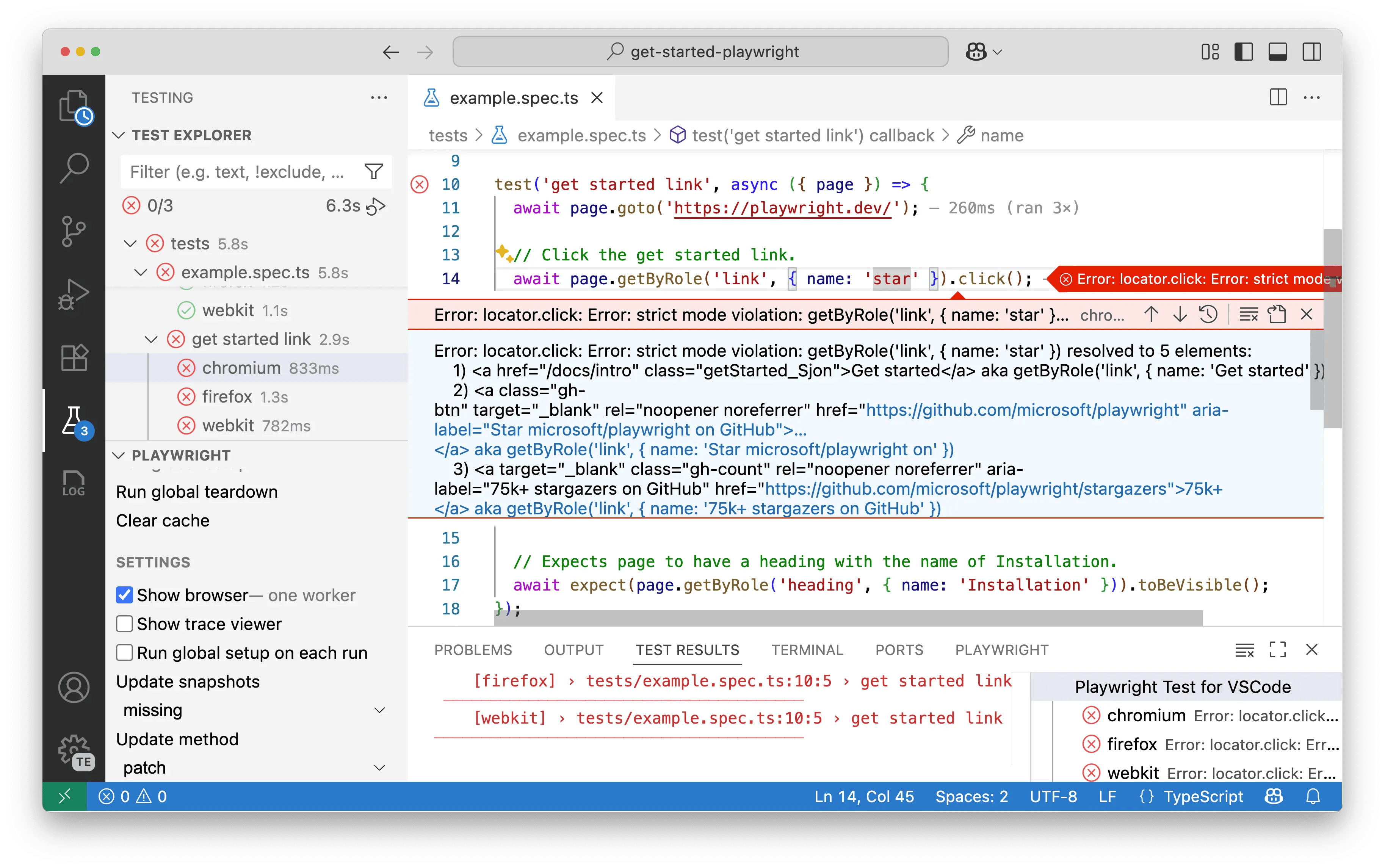
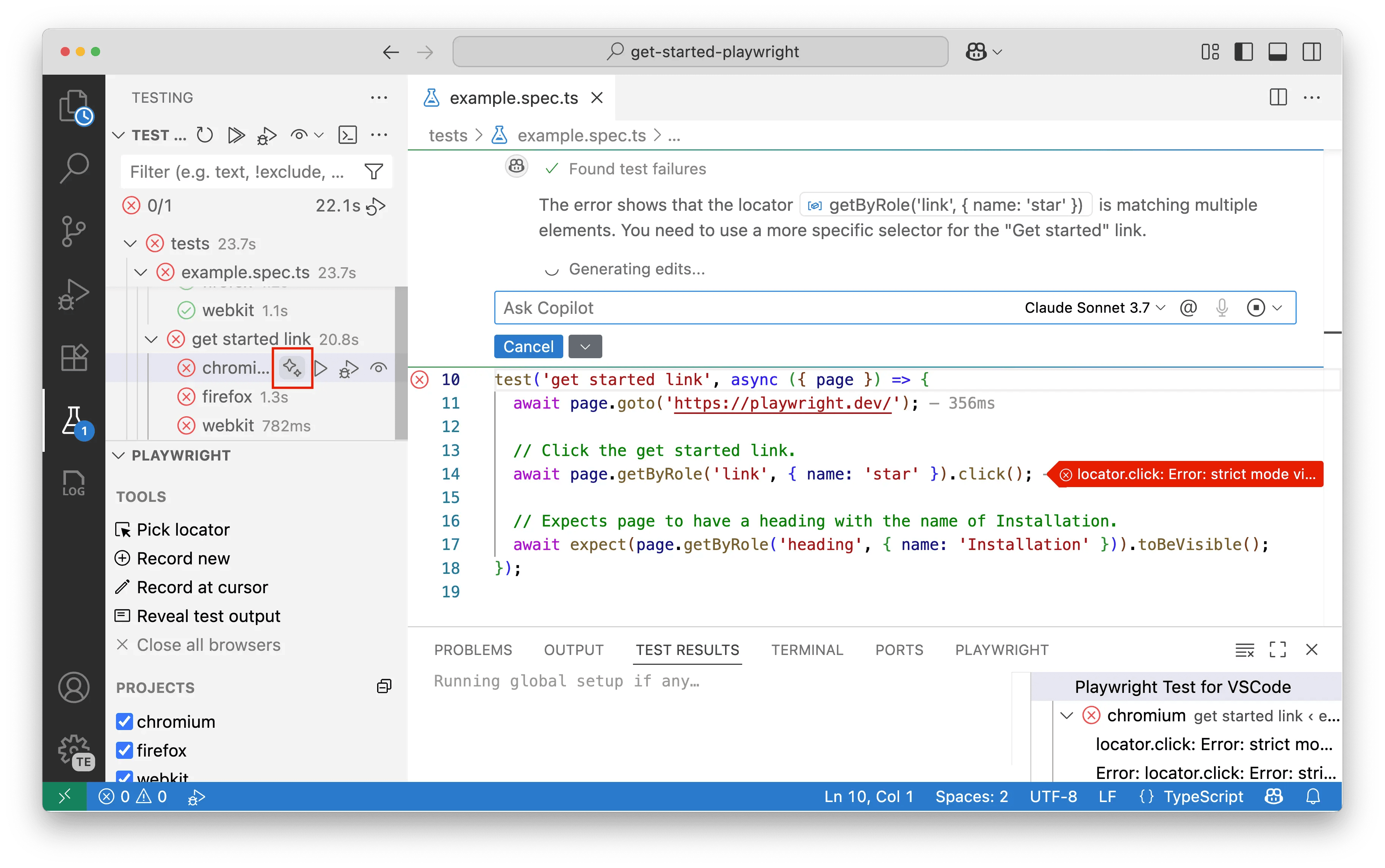
The trace viewer is especially valuable when debugging flaky tests or understanding complex user interactions.
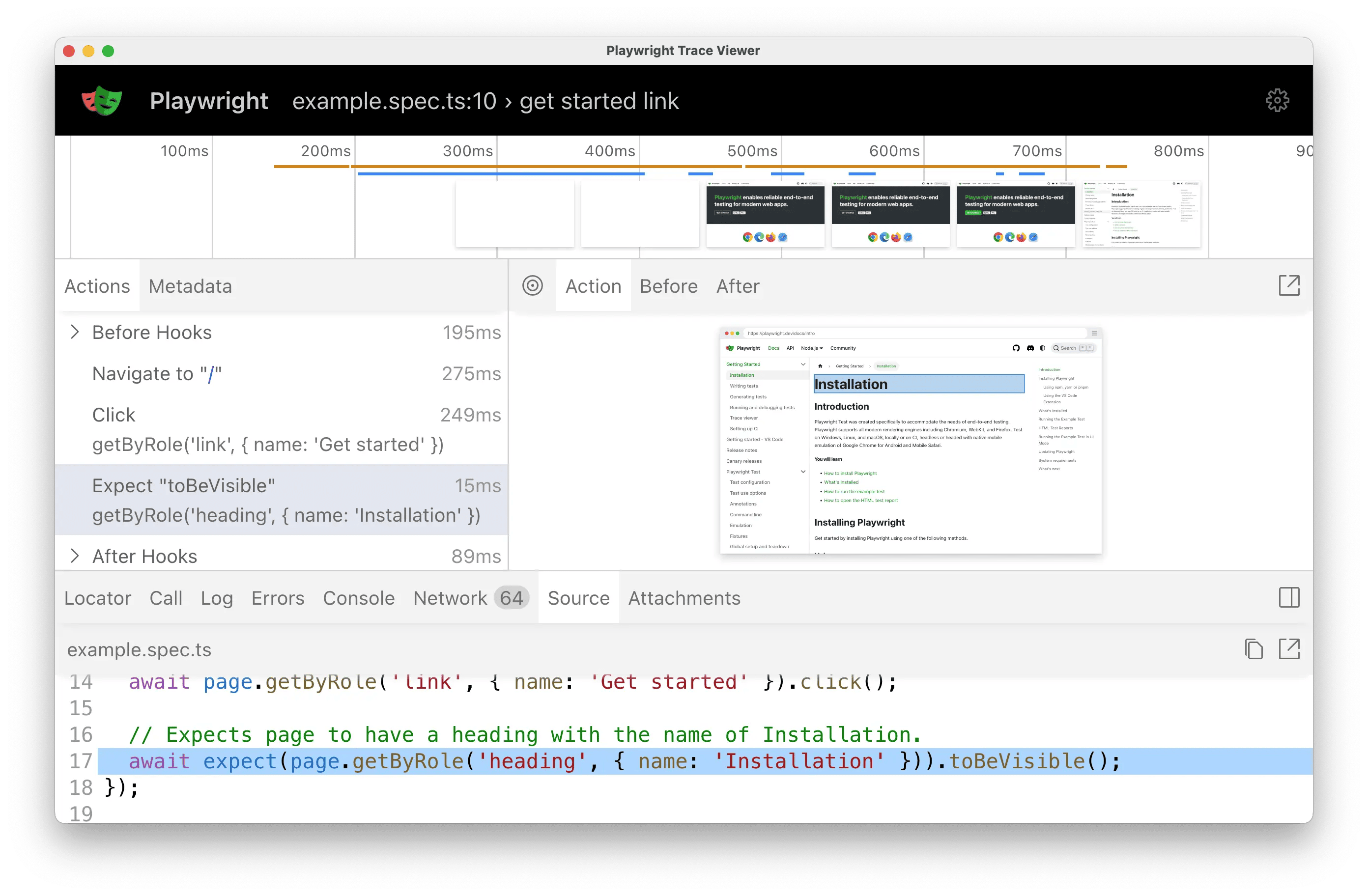
To learn more, see our Trace Viewer guide.
CodeGen is Playwright's powerful test generation tool that automatically creates test code by recording your interactions with a web page. Instead of writing tests from scratch, you can simply navigate through your application while CodeGen captures your actions and converts them into reliable test code with proper locators and assertions.
- **Record a New Test**: Click **Record new** in the sidebar. A browser window will open. As you interact with the page, Playwright will automatically generate the test code. You can also generate assertions from the recording toolbar.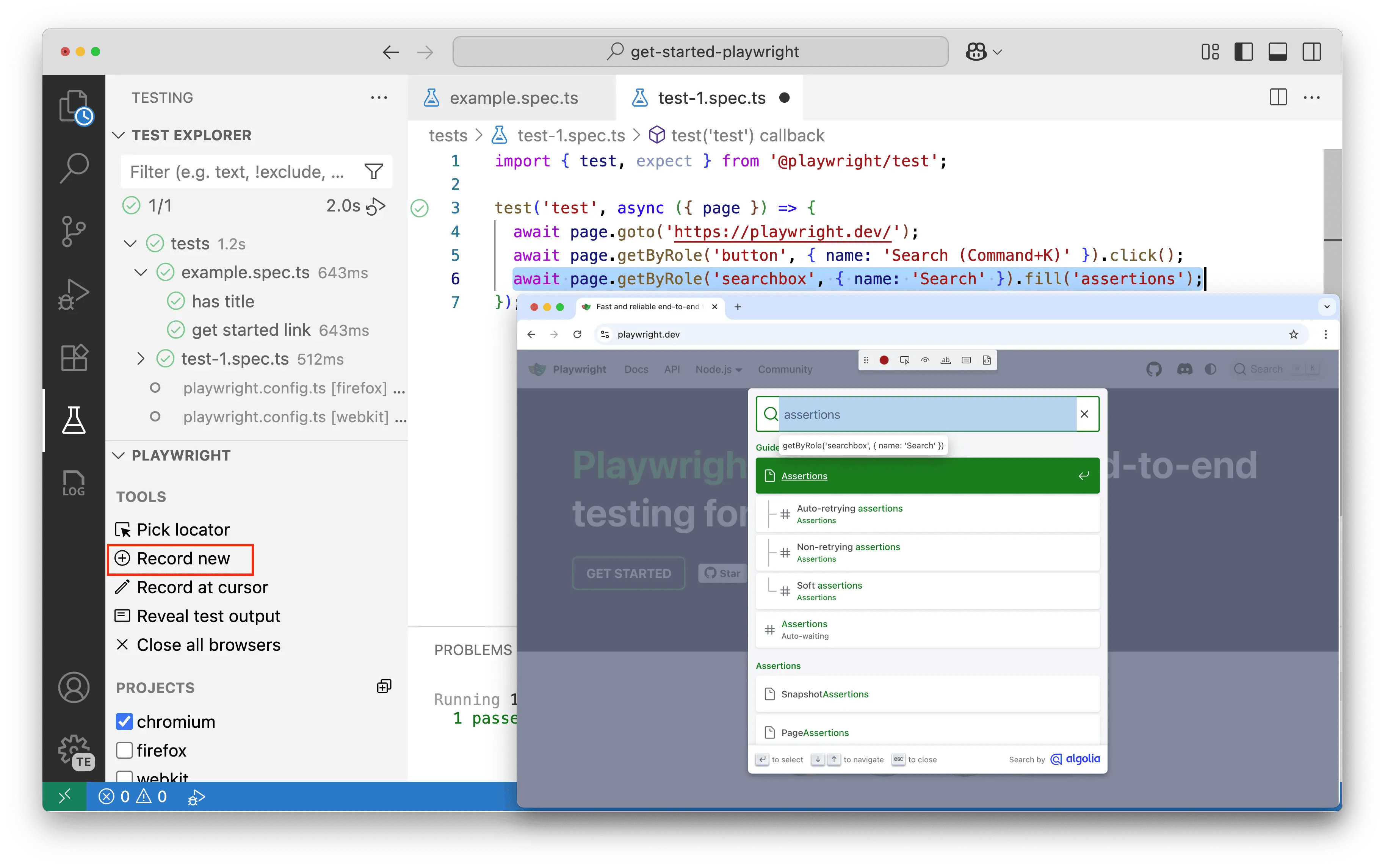
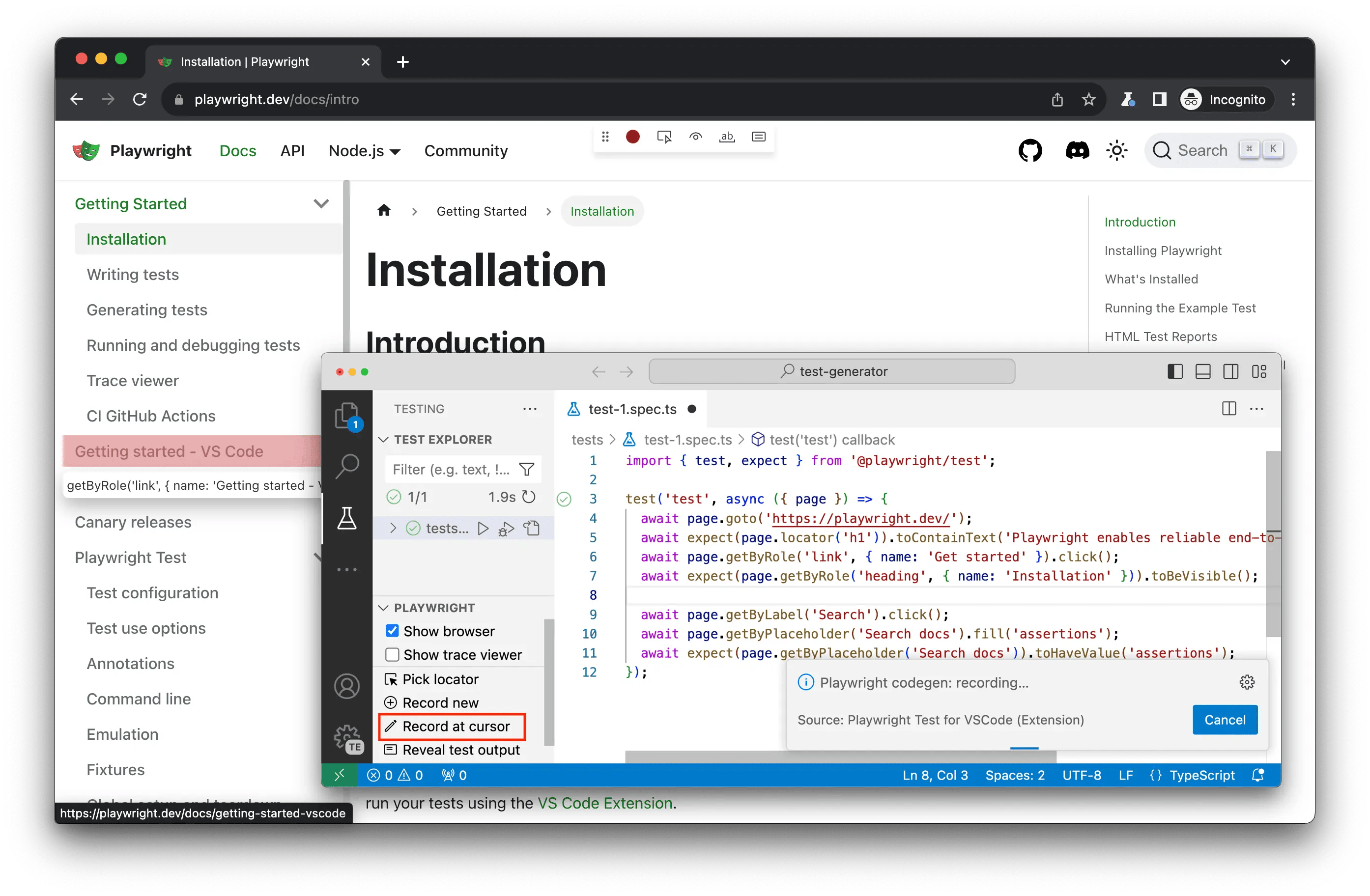
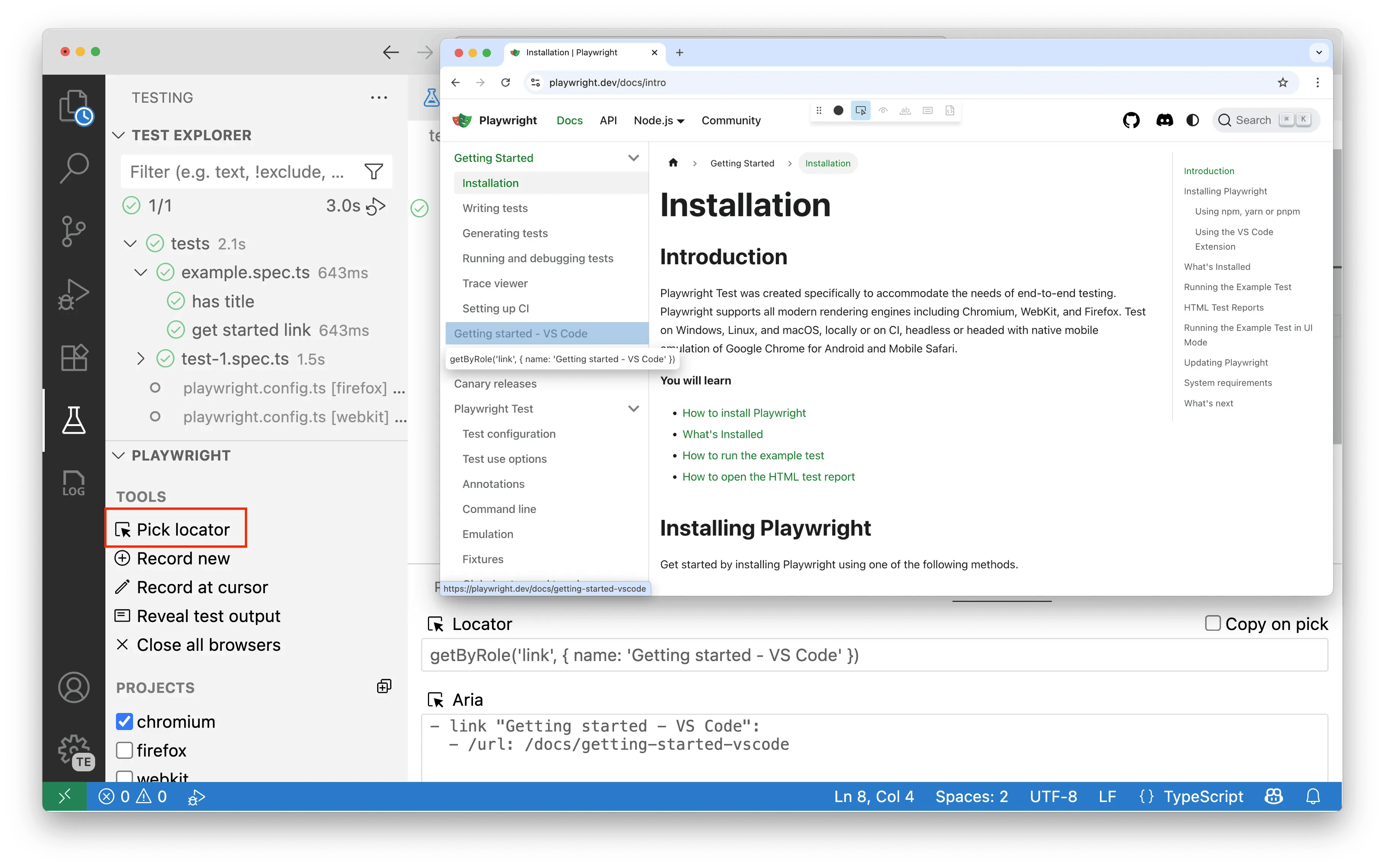
To learn more, see our CodeGen guide.
Use project dependencies to define setup tests that run before other tests. For example, you can create a login test that runs first, then reuse that authenticated state across multiple tests without having to log in again for each test. In VS Code, you can see these setup tests in the Test Explorer and run them independently when needed.
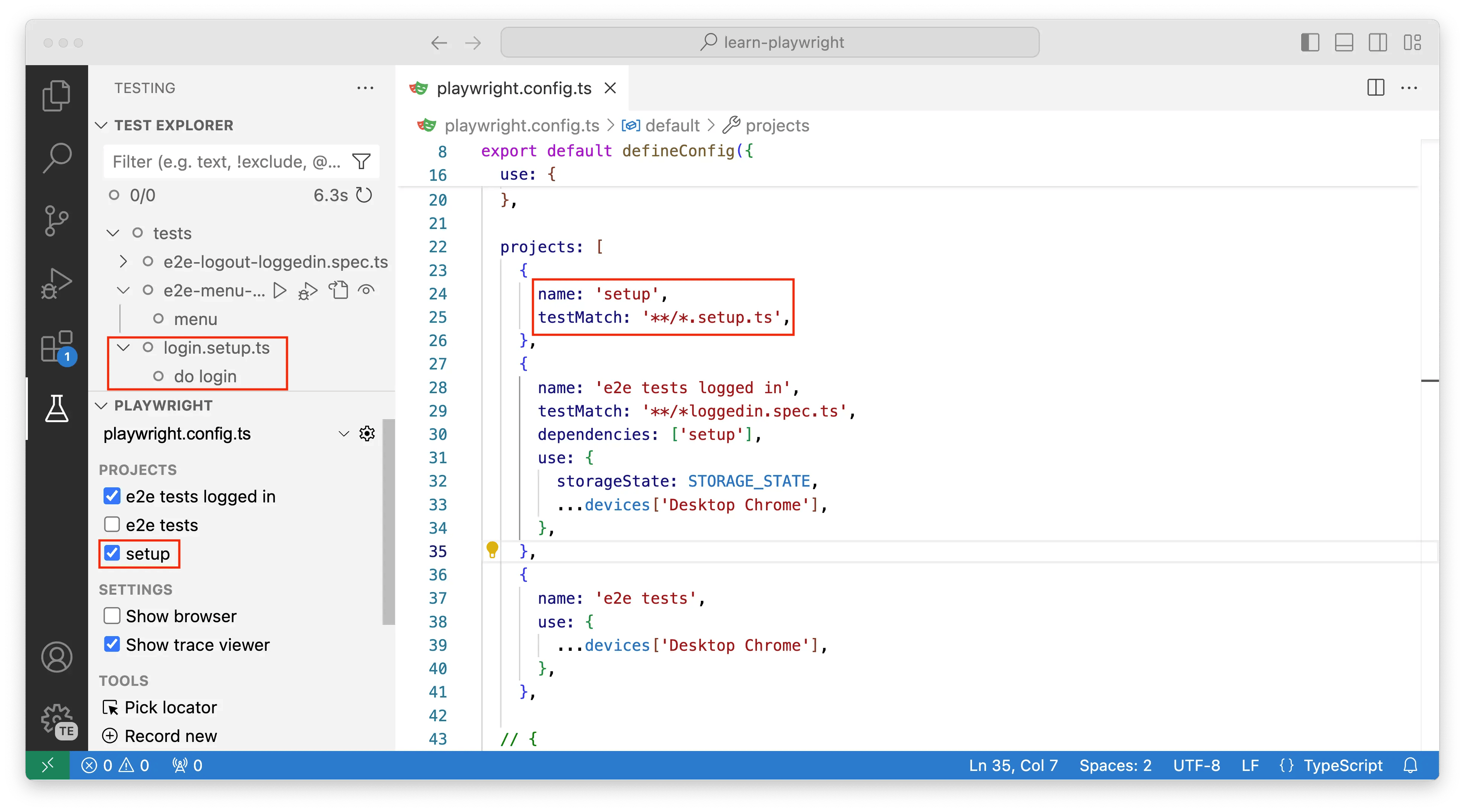
To learn more, see our Project Dependencies guide.
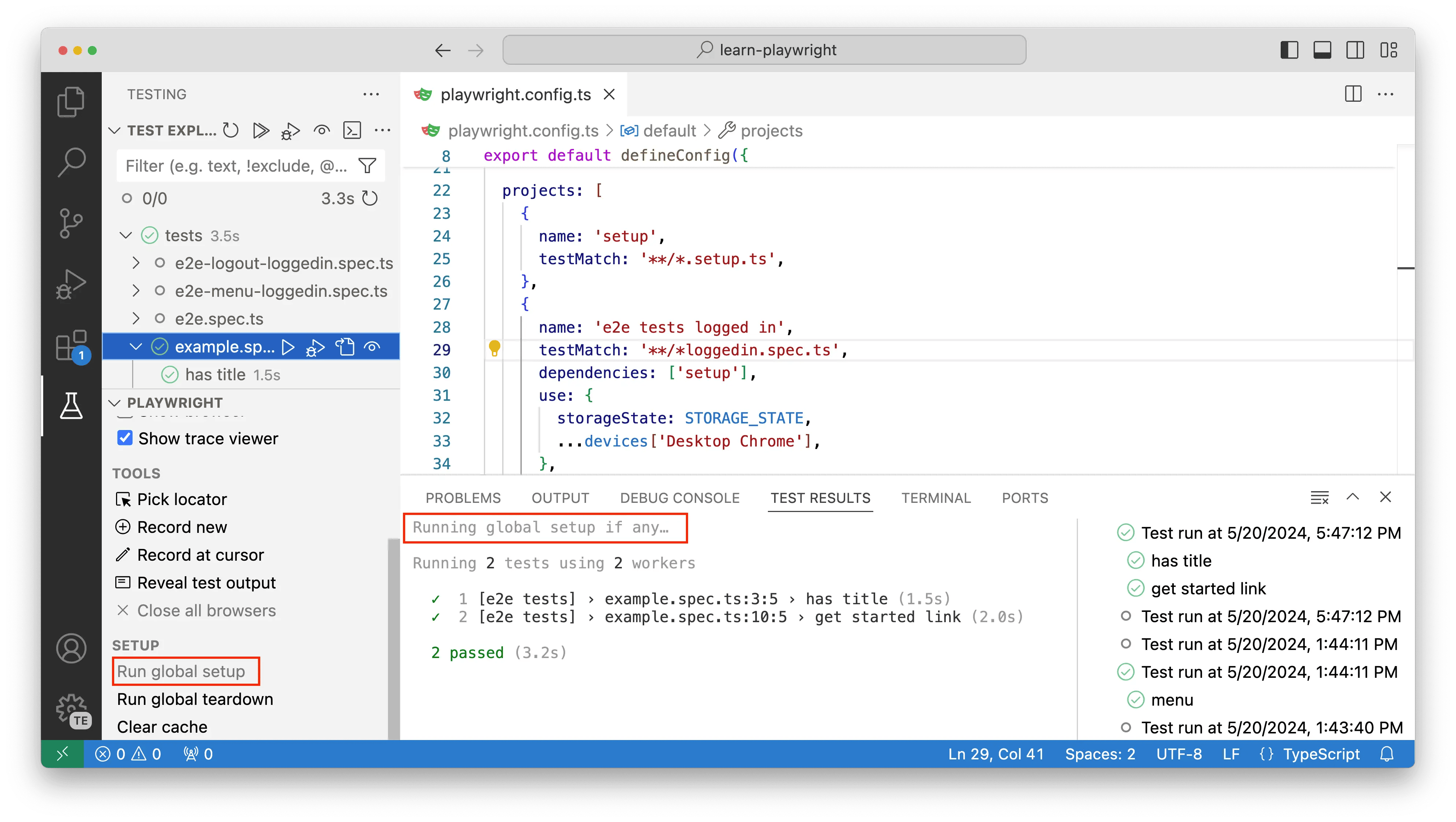
For tasks that need to run only once before all tests (like seeding a database), use Global Setup. You can trigger the global setup and teardown manually from the Playwright sidebar.
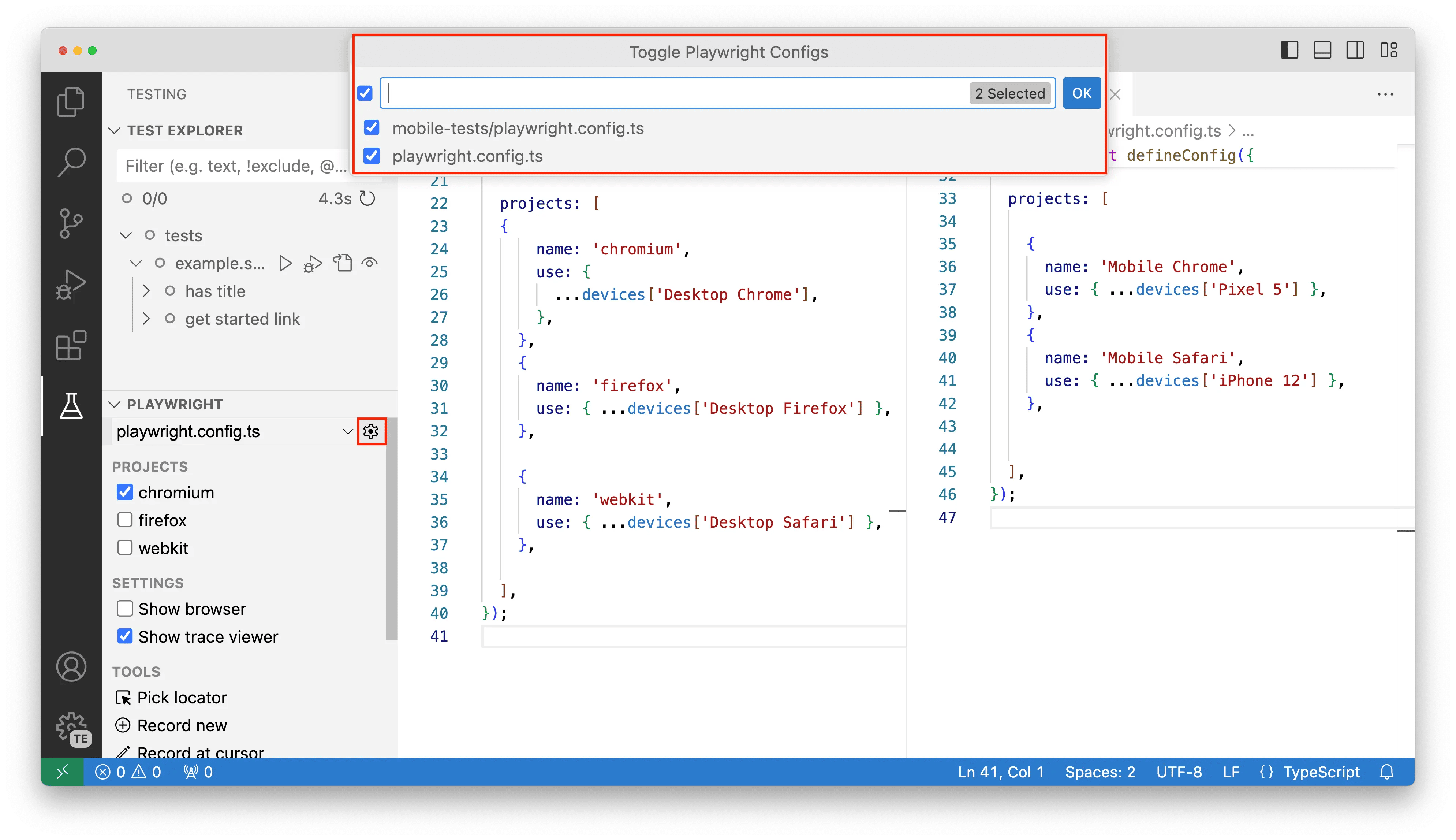
If you have multiple playwright.config.ts files, you can switch between them using the gear icon in the Playwright sidebar. This allows you to easily work with different test suites or environments.
| Action | How to do it in VS Code |
|---|---|
| Install Playwright | Command Palette → Test: Install Playwright |
| Run a Test | Click the "play" icon next to the test |
| Debug a Test | Set a breakpoint, right-click the test → Debug Test |
| Show Live Browser | Enable Show Browsers in the Playwright sidebar |
| Record a New Test | Click Record new in the Playwright sidebar |
| Pick a Locator | Click Pick locator in the Playwright sidebar |
| View Test Trace | Enable Show Trace Viewer in the Playwright sidebar |